
Running many Claude Code sessions at once, without losing track.
Claude Code runs one conversation per terminal, so running several means several terminals. Starting them is easy. Knowing which one is waiting for you is the hard part. Here is what works with only Claude Code and git, and where Mastlight takes over.
Without Mastlight
One terminal per session, each in its own folder
Open a terminal tab or window per task,
cdinto the project, and runclaude. Give each tab a name you will recognise at a glance. If you close a terminal you can pick the conversation up again withclaude --resume, which opens a picker, orclaude --continue, which reopens the most recent session in the current folder.Give each session its own copy of the files
Two sessions editing the same checkout will step on each other. Claude Code can start a session in a separate git worktree:
claude --worktree feature-authThat creates a checkout under
.claude/worktrees/feature-auth/on a new branch calledworktree-feature-auth. Run the command again with another name in a second terminal. It needs a git repository, and Claude Code suggests adding.claude/worktrees/to your.gitignore.Get told when a session stops
When Claude finishes or pauses for a permission prompt while you are away from the terminal, Claude Code fires a notification event. You can turn that into a sound with a Notification hook. This example, from Claude Code’s terminal docs, plays a system sound on macOS; put it in
~/.claude/settings.json:{ "hooks": { "Notification": [ { "hooks": [{ "type": "command", "command": "afplay /System/Library/Sounds/Glass.aiff" }] } ] } }The same docs page covers the terminal bell and desktop notifications, and which terminals send them by default.
Or use Claude Code’s own agent view
From Claude Code 2.1.139,
claude agentsopens agent view, a research preview: one screen listing your background sessions, grouped by what is running, what needs your input, and what is done. You can reply from the list or attach to a session. Sessions you already have open in other terminals appear there only after you move them to the background with/bg. It is a good fit if you like dispatching tasks and checking back; the sessions live in the terminal, not in a window of their own.Watch your limits
Several sessions at once use your plan faster. Claude Code’s docs note that running several sessions or subagents at once multiplies token usage, and
/usageshows your plan limits.
That setup works. What it lacks is one place to look. A bell tells you something stopped, not which of eight tabs, and a closed terminal ends the session in it.
How Mastlight does it
Mastlight runs each session in a terminal of its own and keeps them on one board, whatever account they belong to.
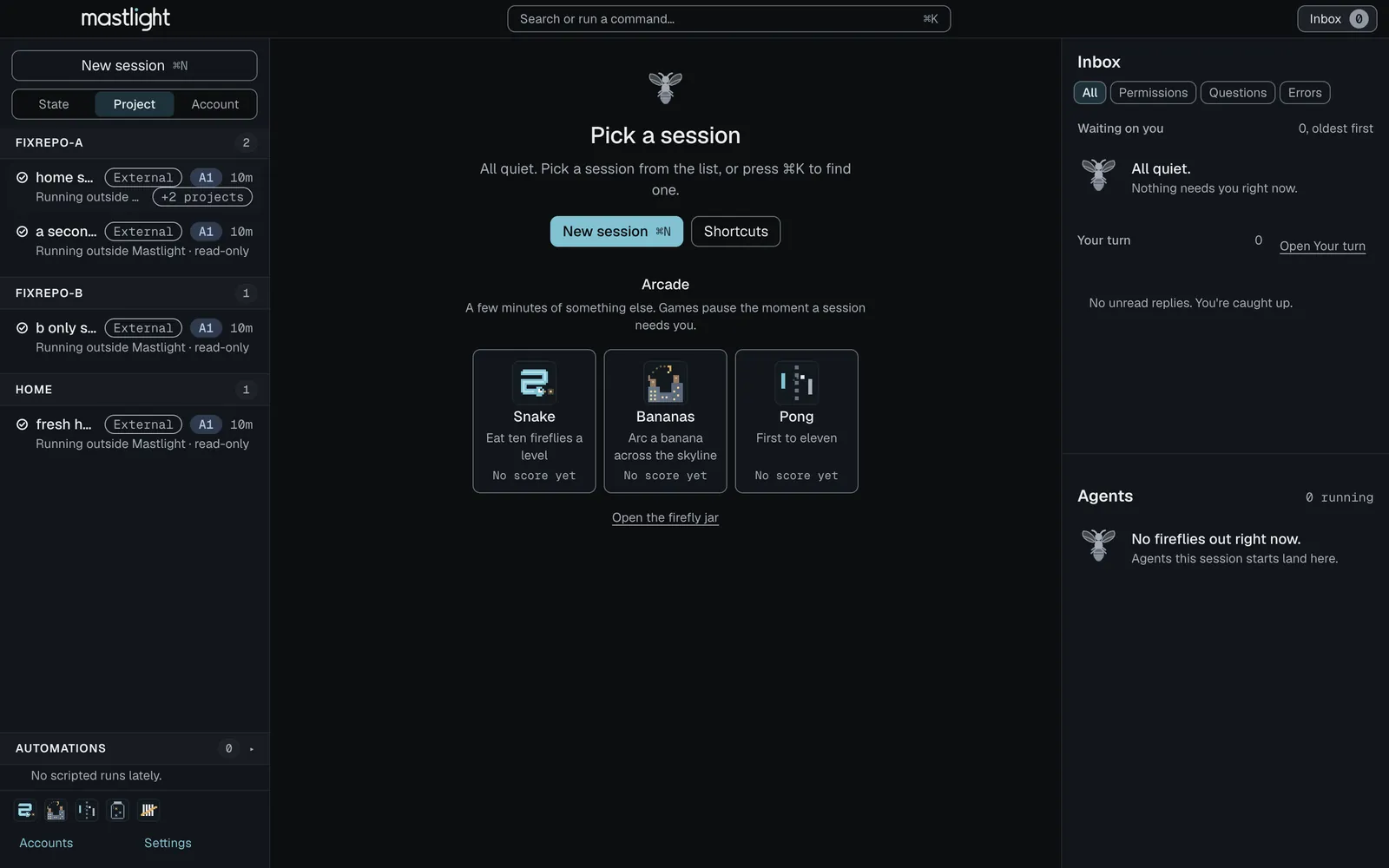
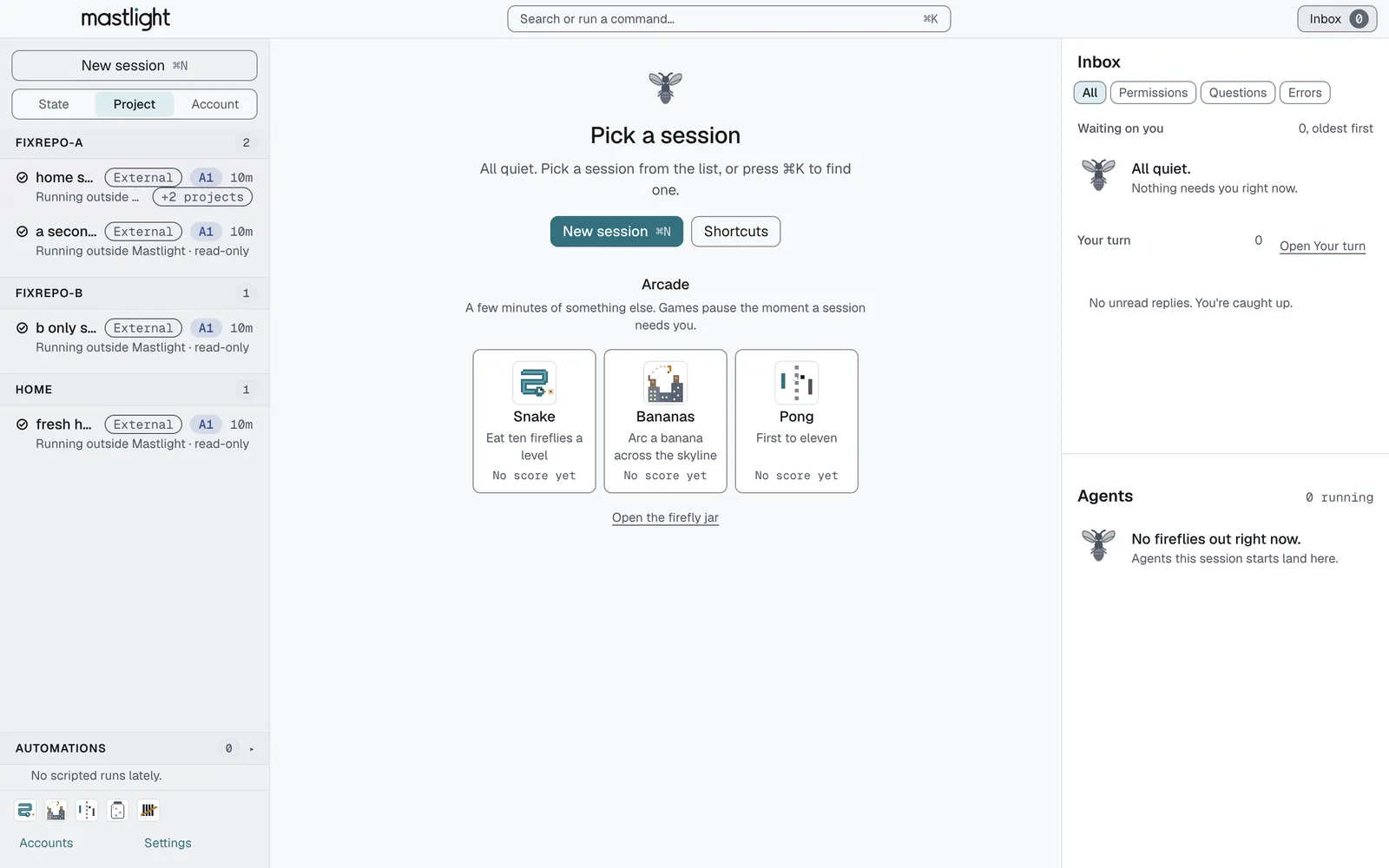
- Every session has one state, and a word for it. Waiting on you, Working, Your turn, Ready, Idle, Failed, Ended. Sessions that need you move to the top of the list.
- One inbox. Anything waiting, from any session, is in the Inbox, oldest first. ⌘ J Ctrl Shift J jumps to the oldest one.
- Your turn. Finished sessions line up oldest first, each with a reply box and your usual quick replies, so you can answer without opening the session.
- Start one in two keystrokes. ⌘ N Ctrl Shift N asks for a folder and an account, and you get on with something else.
- Terminals survive quitting. A small background helper owns the terminals, not the window. Quit or update Mastlight and the sessions carry on; open it again and every tab reattaches. After a crash or reboot, the next launch offers to restore them in their own folders, under their own accounts.
- Sessions from other terminals can move in. A
claudealready running in iTerm, Terminal or tmux shows up read-only on a Mac, and File, Import sessions moves it in with the same conversation.
Try Mastlight
Free, early preview, runs on your computer, no account with us.