
Using two (or more) Claude accounts with Claude Code.
A work account and a personal one is the usual case. Claude Code can stay signed in to both at once, as long as each gets its own configuration folder. Here is how to set that up by hand, and how Mastlight keeps the accounts side by side.
Without Mastlight
Give each account its own configuration folder
Claude Code reads the
CLAUDE_CONFIG_DIRenvironment variable to decide where its settings, session history and login live. Point it at a different folder per account and each keeps its own settings, history and sign-in. Your first account can stay on the default,~/.claude. On a Mac, in zsh or bash, an alias does it. Add this to~/.zshrcor~/.bashrc:alias claude-work='CLAUDE_CONFIG_DIR=~/.claude-work claude'In Windows PowerShell, set the variable for the session and then start Claude Code:
$env:CLAUDE_CONFIG_DIR = "$env:USERPROFILE\.claude-work"; claudeThe variable stays set for that PowerShell window. To get back to your default account, open a new window, or clear it with
Remove-Item Env:CLAUDE_CONFIG_DIR.Sign in once per folder
Open a new terminal and run
claude-work. The first time, Claude Code walks you through login and setup for that folder. From then onclaudeuses your first account andclaude-workuses the other.Check which account you are in
Inside a session,
/statusshows the version, model and account./loginsigns in again, and/logoutsigns out.Know what is and is not separate
Each folder has its own session history, so a conversation started under one account does not show up under the other.
/usageshows your plan usage limits. One caveat from Claude Code’s docs: two Claude Console sign-ins that do not use an API key are not kept apart by folders, because Claude Code stores that kind of sign-in outside the configuration directory.
The by-hand setup is simple, and it is enough for one terminal at a time. It gets fiddly when you have six sessions open across two accounts: nothing on screen says which account a given tab is using unless you ask /status in each, and the limits are one more command per account.
A note on terms: each account should be your own. Anthropic’s Consumer Terms do not allow sharing a login.
How Mastlight does it
Mastlight does the same thing underneath: every account is a CLAUDE_CONFIG_DIR, and every session starts under the account you pick. You just never type the variable.
- Add an account inside the app. It opens a built-in terminal running
claudefor that account, and you sign in with Claude’s own/login. Mastlight never sees, stores or types a credential. Accounts you already have (~/.claudeand any~/.claude-*folder) are offered for import in place, never moved. - Pick the account per session. ⌘ N Ctrl Shift N asks for a folder and an account.
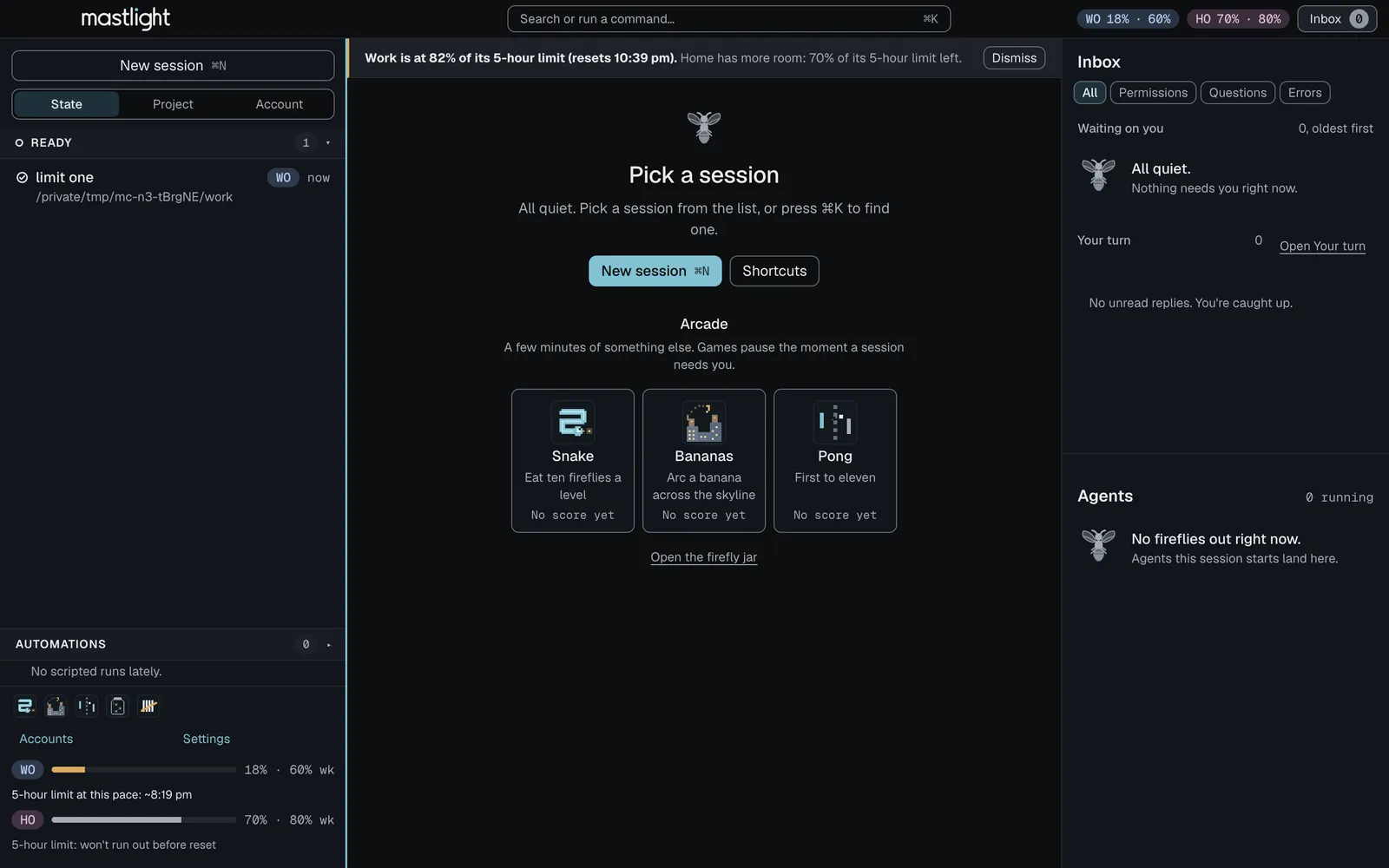
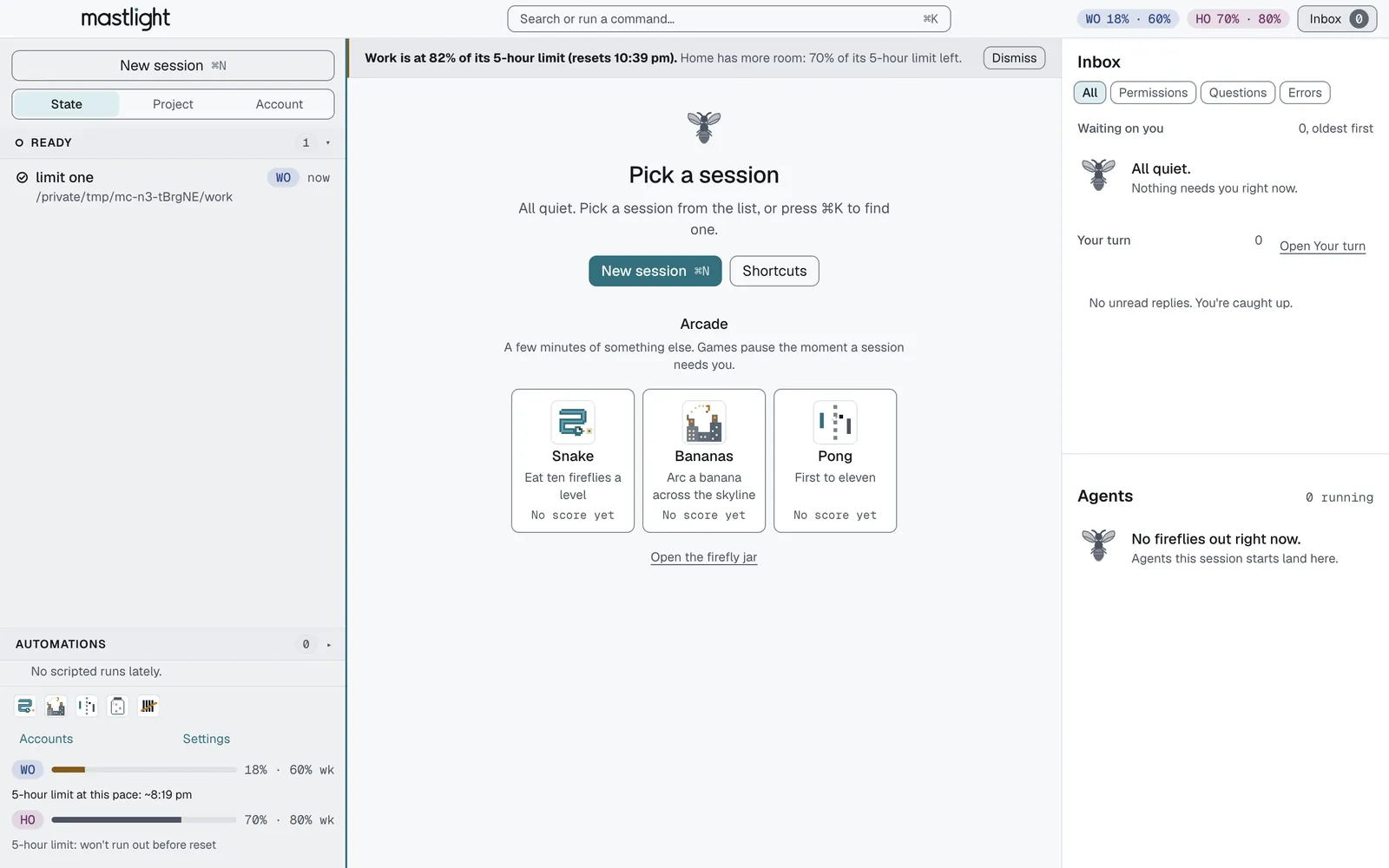
- One list for every account. Group sessions by state, by project, or by account. Each account has its own colour chip, so you can see at a glance whose session it is.
- Restore remembers the account. After a crash or a restart, the next launch offers to restore your sessions, and each one comes back in its own folder under its own account. With aliases, that is on you to remember.
- Each account’s limits, in view. The 5-hour and weekly gauges sit under the session list without opening anything. Limits Pilot forecasts when the 5-hour limit will run out, warns quietly at 80% and 95%, and shows when your other account has more room. It never switches accounts for you.
Try Mastlight
Free, early preview, runs on your computer, no account with us.